
Search


Highlights
Product Description
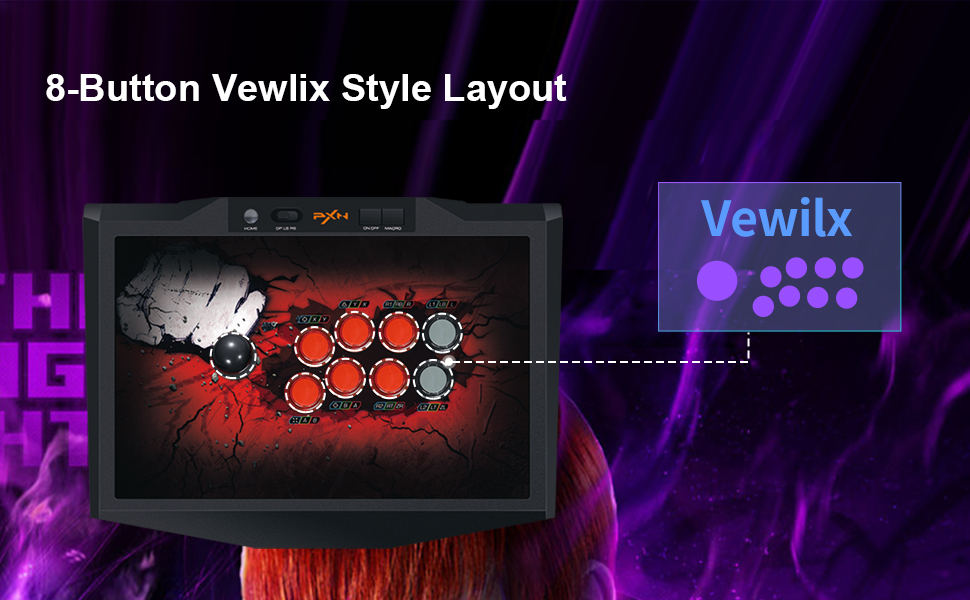
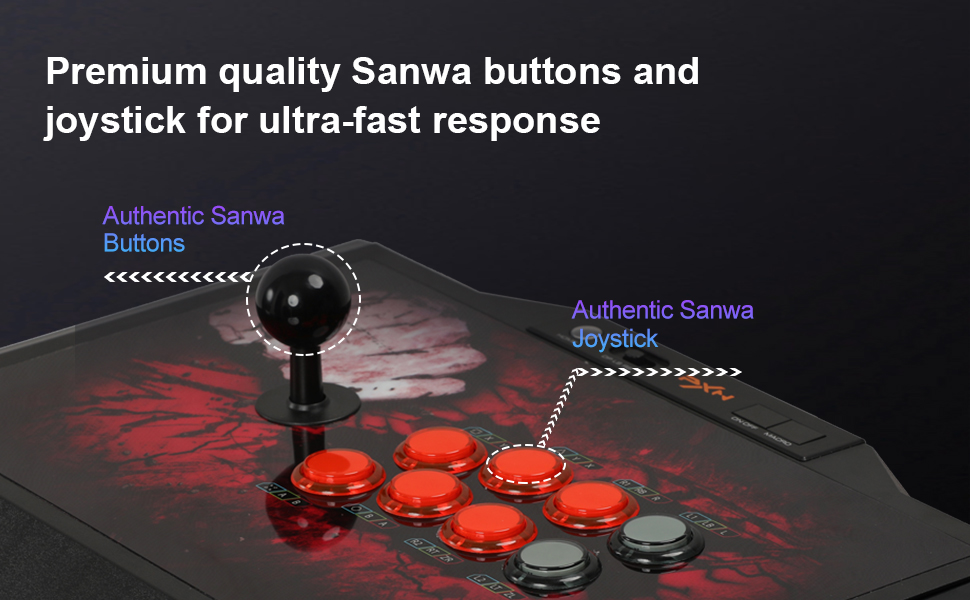
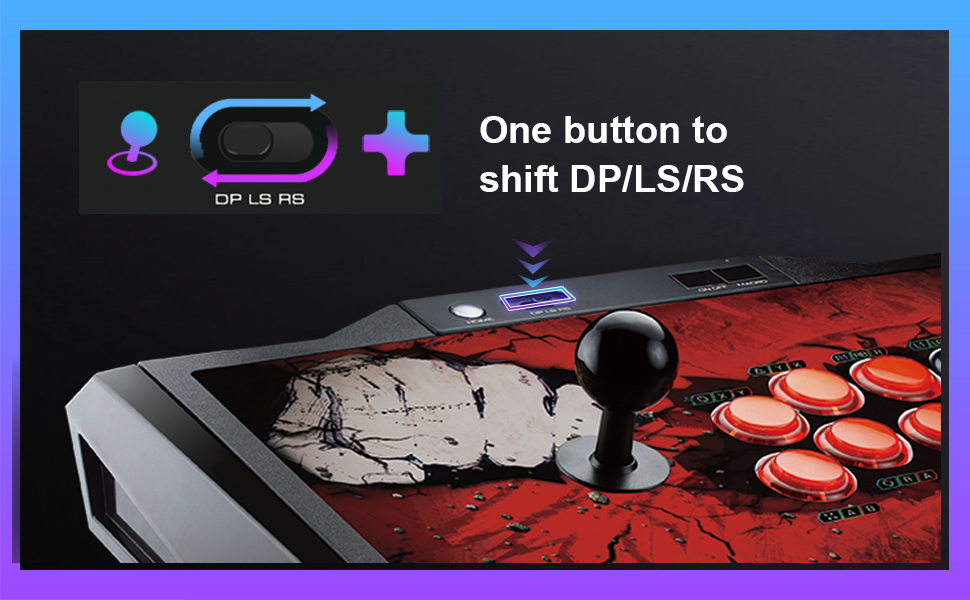
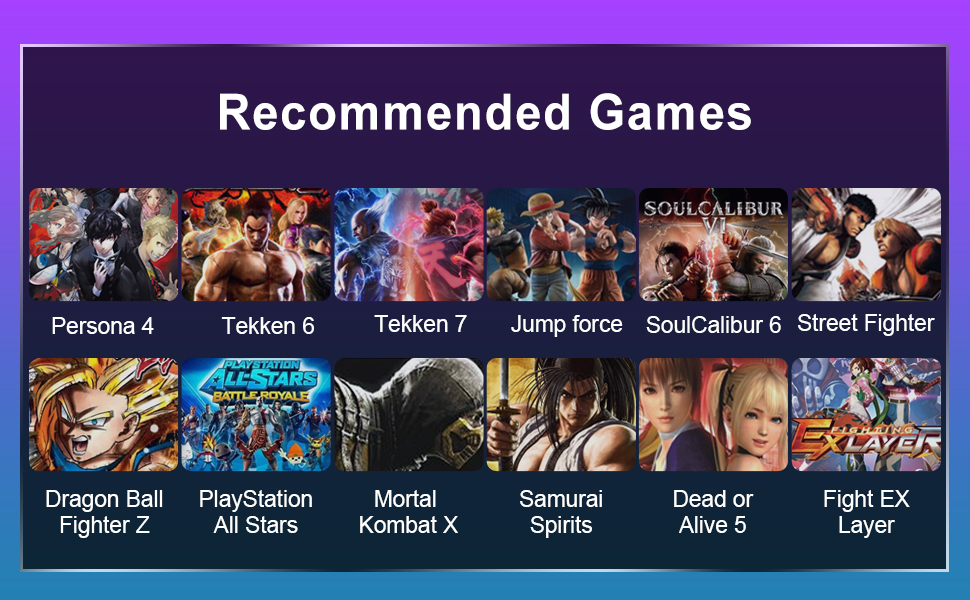
Android Device Application Connect with Android cellphone
① Plug the USB cable into Arcade Stick port.
② Connect with OTG adapter (Micro otg or TYPE-C).
③ And then download the fighting games or emulator game.
PS : Some of cellphones need to turn on the OTG function switch in the phone setting. Connect with Android TV box or TV
① Plug the USB cable into using device.
② And then download the fighting games or emulator game
Troubleshooting
1. If the backlight is on but the Arcade Stick is not working when it is connected to the console, re-plug it or check that the controller is working properly.
2. If the Arcade Stick is not working and the console screen freezes, the console may have crashed unexpectedly. Please restart the console and connect the Arcade Stick.
3. If the Arcade Stick is not operating properly in the game, unplug and reconnect the Arcade Stick.
4. When connecting the original controller,a high-quality USB cable is required.
What's in the Box
Warranty
Highlights
Product Description
Android Device Application Connect with Android cellphone
① Plug the USB cable into Arcade Stick port.
② Connect with OTG adapter (Micro otg or TYPE-C).
③ And then download the fighting games or emulator game.
PS : Some of cellphones need to turn on the OTG function switch in the phone setting. Connect with Android TV box or TV
① Plug the USB cable into using device.
② And then download the fighting games or emulator game
Troubleshooting
1. If the backlight is on but the Arcade Stick is not working when it is connected to the console, re-plug it or check that the controller is working properly.
2. If the Arcade Stick is not working and the console screen freezes, the console may have crashed unexpectedly. Please restart the console and connect the Arcade Stick.
3. If the Arcade Stick is not operating properly in the game, unplug and reconnect the Arcade Stick.
4. When connecting the original controller,a high-quality USB cable is required.
What's in the Box
Warranty