


Search


Highlights
Product Description

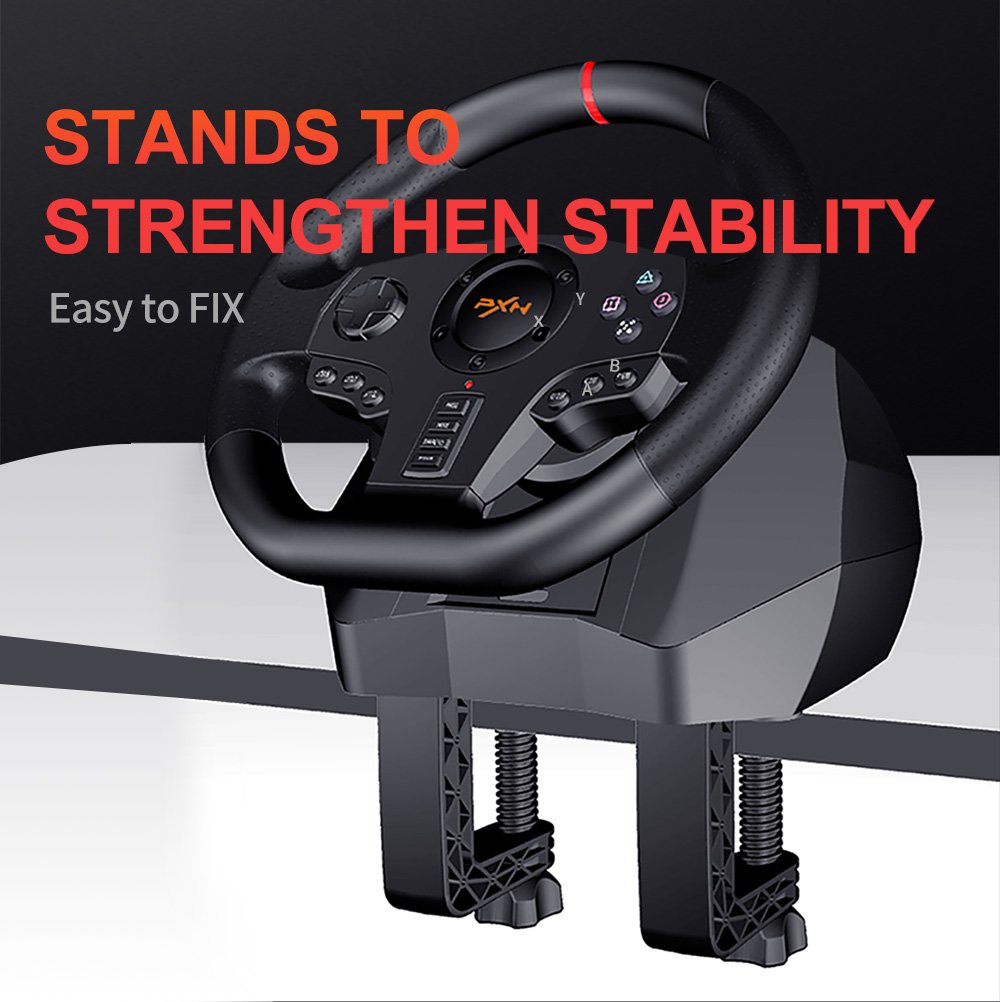
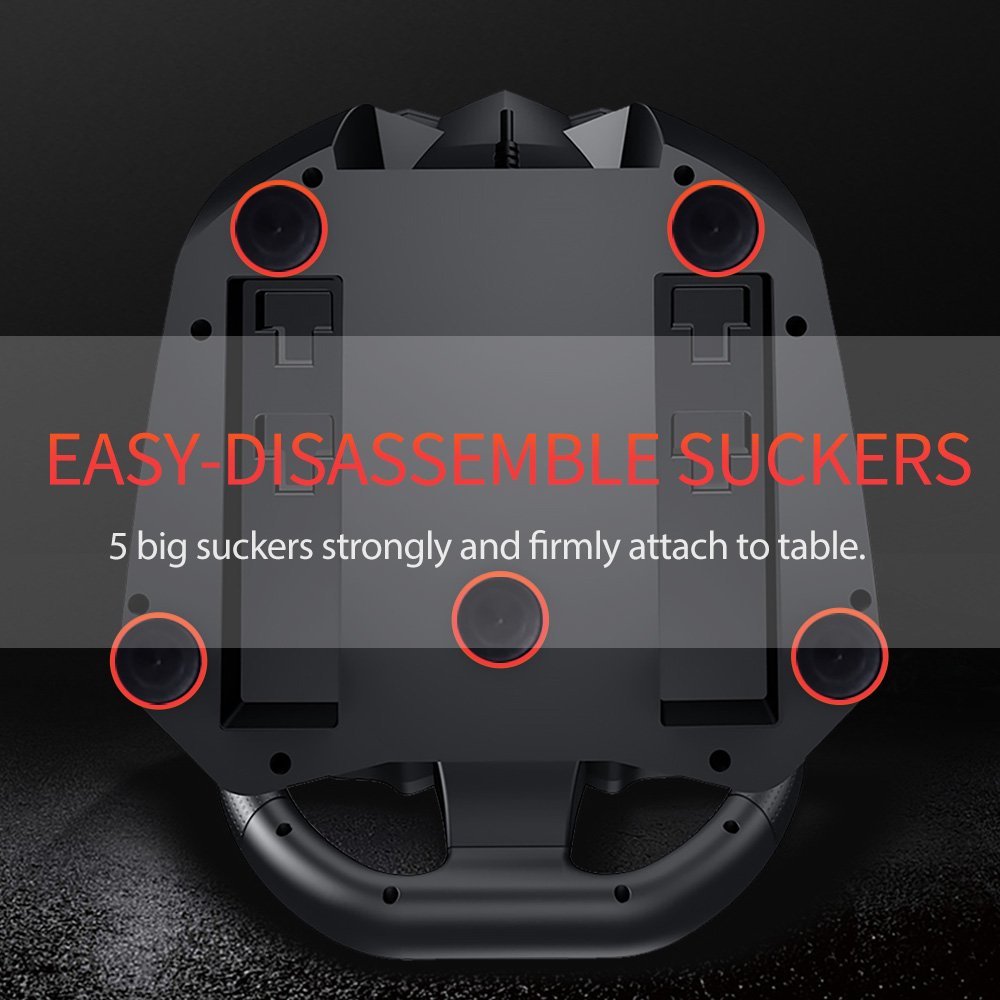
Mounting Clamps 2:
Racing Wheel is equipped with a clamping system for mounting to a table.
Step 1 Match the sucker with racing wheel, and then rotate to lock.
Step 2 Rotate clamp knobs to loosen clamps.
Step 3 Match the clamps with Racing Wheel.
Step 4 Mounting the Racing Wheel to a table and then rotate clamp knobs to tighten clamps.
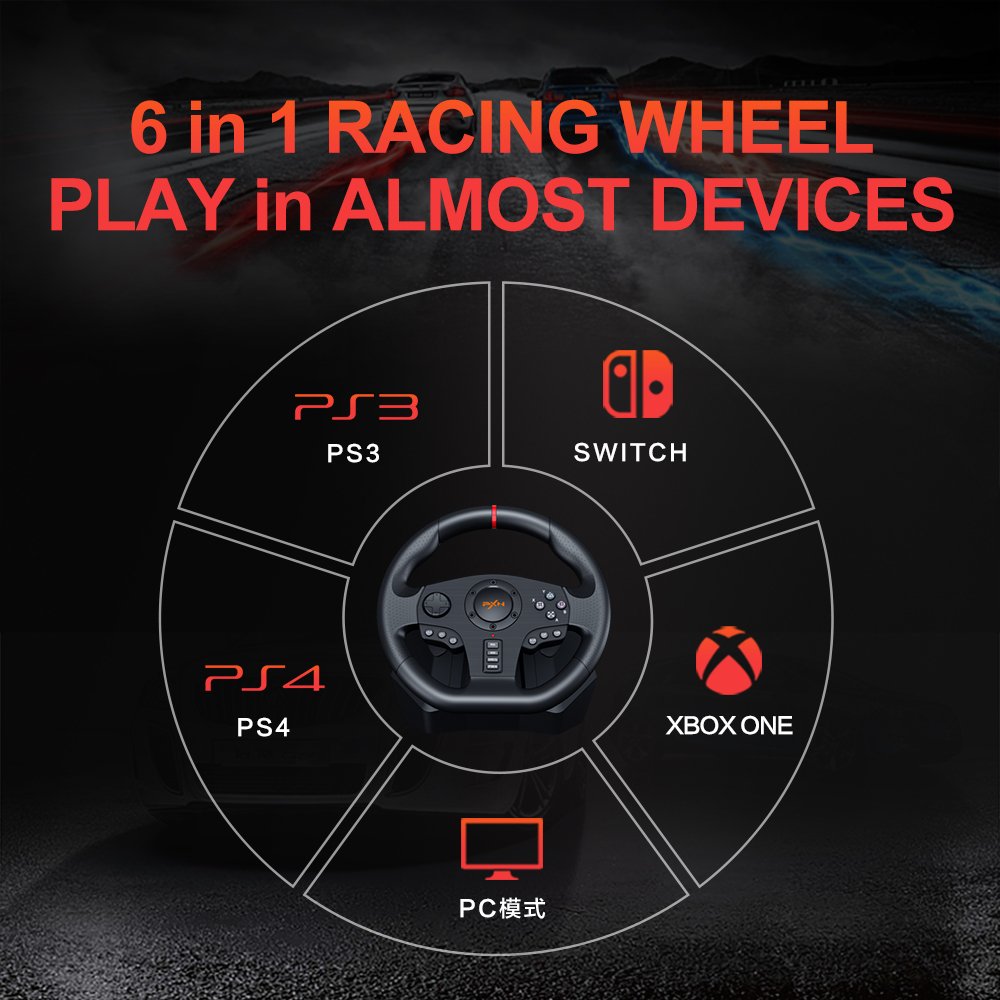
Using for PC
Step 1 Switch MODE between X-input and D-input.
Step 2 Racing Wheel is default to X-input mode when connecting computer, and red LED keeps lighting on.
X-input mode
X-input MODE is compatible with Games for windows,Plug and play.
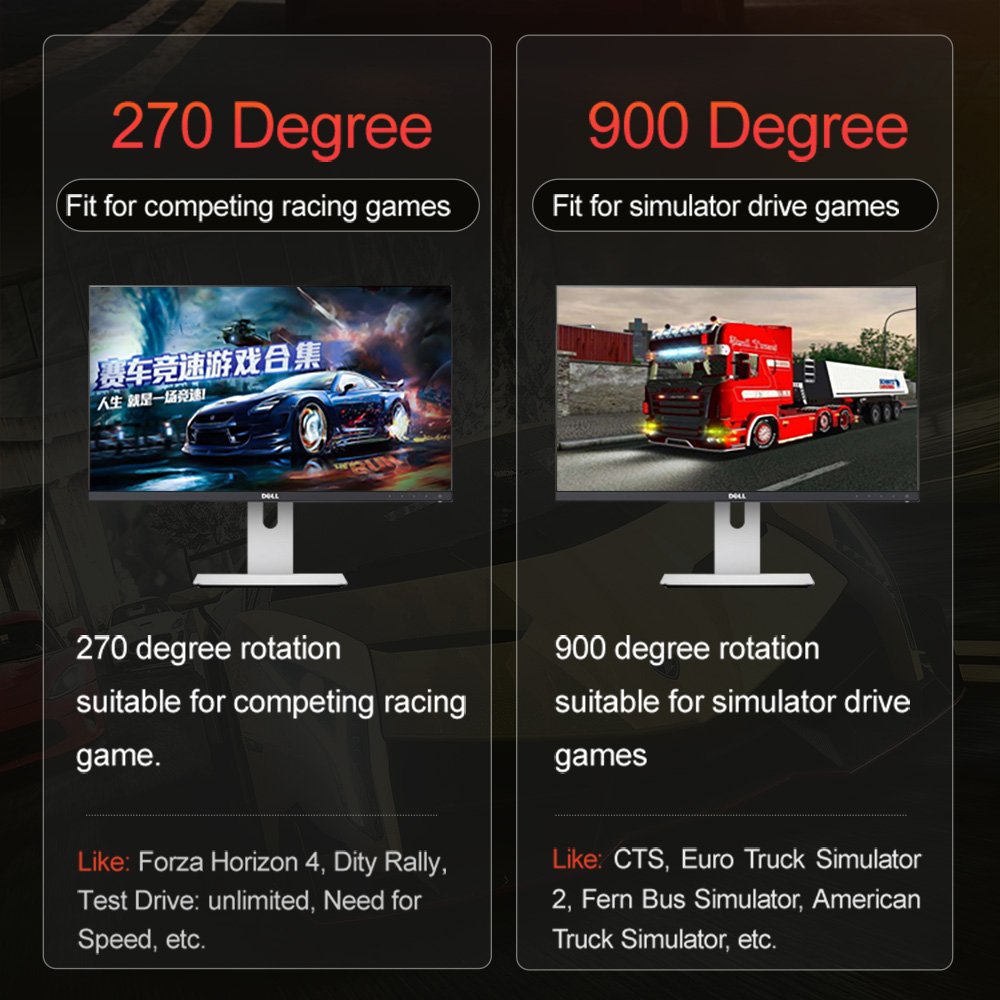
Recommended Games: "Need for Speed 13" above version, "Dirty2/3/4", "Ridge Racer" and so on.
D-input mode
D-input MODE is compatible with early PC racing games.
Recommended Games: "Need for Speed 1-12" , "Euro Truck Simulator" and so on.
Using for PS3 Console
Step 1 Connect the Racing Wheel to the USB port of the PS3.
Step 2 When the Red LED light keeps on. it can start to play game or set functionson PS3.
Using for PS4 Console
Step 1 Power off the original controller of PS4.
Step 2 Connect the Racing Wheel with PS4 controller by Micro USB cable.
Step 3 Plug the USB of Racing Wheel into PS4 USB interface.
Step 4 Press the button of "MODE". After that the Racing Wheel can start to play game and setting.
Using for XBOX ONE /XBOX SERIES X&S Console
Step 1 Power off the original controller of XBOX ONE/XBOX SERIES X&S.
Step 2 Connect the Racing Wheel with console controller by Micro USB cable.
Step 3 Plug the USB of Racing Wheel into console USB interface.
Step 4 Press the button of "MODE". After that the Racing Wheel can start to play game and setting.
Voice Communication Function
The Racing Wheel supports to connect with headset and microphone, allowing player to connect headset for voice communication on PS4/XBOX ONE/ XBOX SERIES X&S console.
Sensitivity Setting
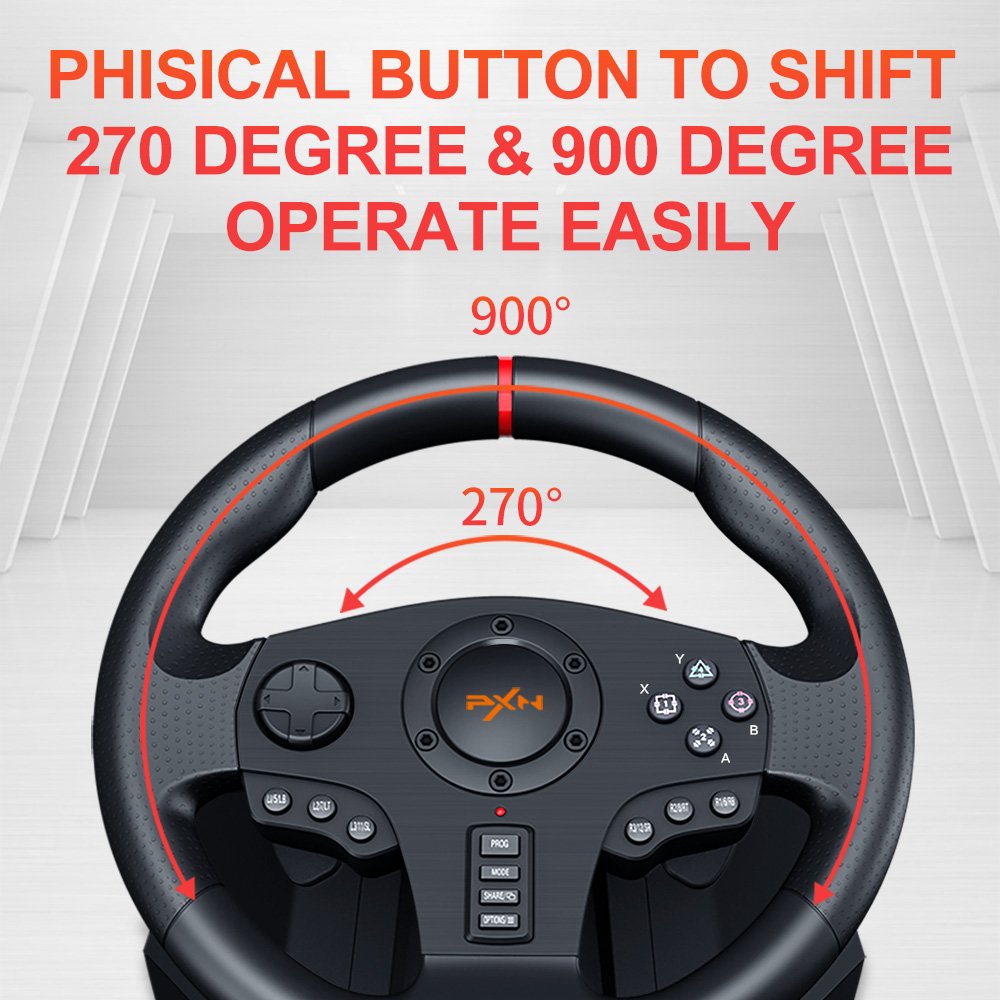
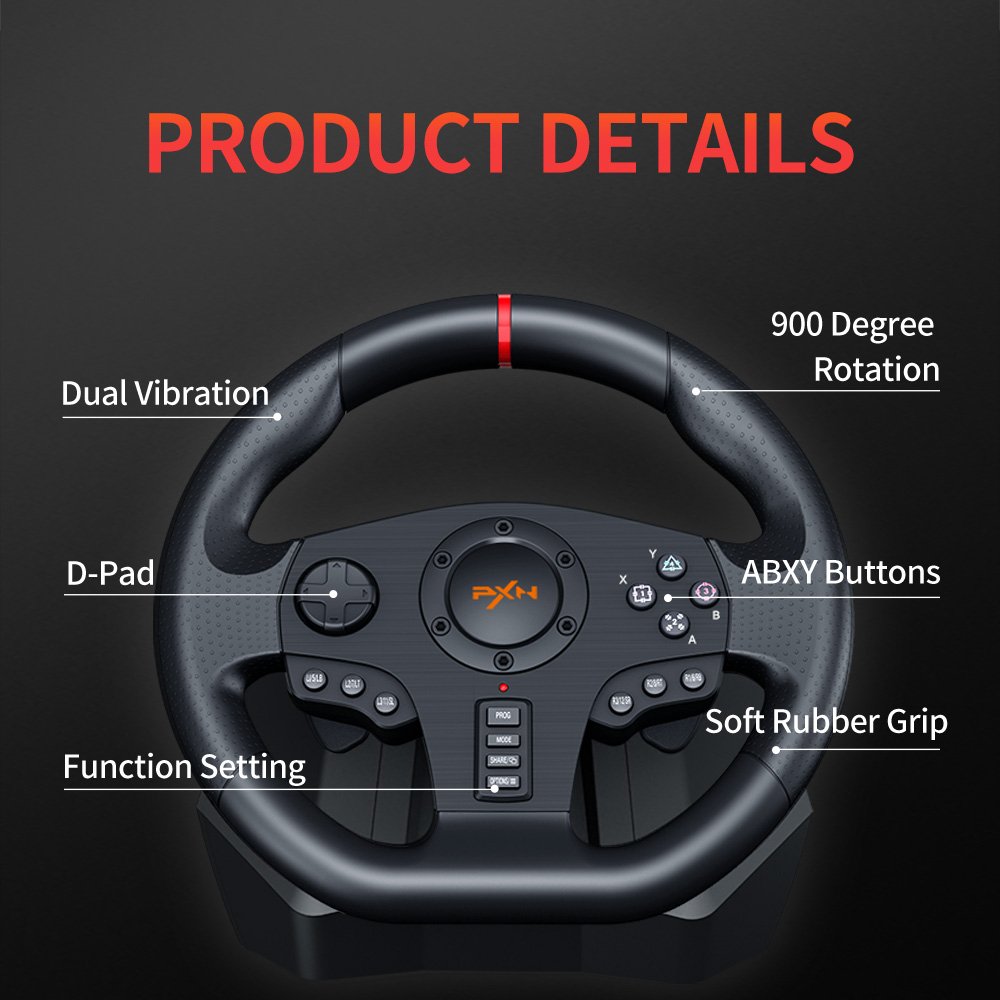
High sensitivity: Press the "PROG" Button, the Red LED flashes quickly, press the D-pad "↑" button. (Recommend for PS3, PS4, XBOX ONE, XBOX SERIES X&S console) Medium sensitivity: Press the "PROG" button, the Red LED flashes quickly, press the D-pad "←" button. Low sensitivity: Press the "PROG" button, the Red LED flashes quickly, press the D-pad "↓" button. (Recommend for PC, PS3, PS4, XBOX ONE, XBOX SERIES X&S platform)
Please Note : The steering wheel need original controller to hook it up when using on XBOX ONE/PS4.
What's in the Box
Warranty
Highlights
Product Description
Mounting Clamps 2:
Racing Wheel is equipped with a clamping system for mounting to a table.
Step 1 Match the sucker with racing wheel, and then rotate to lock.
Step 2 Rotate clamp knobs to loosen clamps.
Step 3 Match the clamps with Racing Wheel.
Step 4 Mounting the Racing Wheel to a table and then rotate clamp knobs to tighten clamps.
Using for PC
Step 1 Switch MODE between X-input and D-input.
Step 2 Racing Wheel is default to X-input mode when connecting computer, and red LED keeps lighting on.
X-input mode
X-input MODE is compatible with Games for windows,Plug and play.
Recommended Games: "Need for Speed 13" above version, "Dirty2/3/4", "Ridge Racer" and so on.
D-input mode
D-input MODE is compatible with early PC racing games.
Recommended Games: "Need for Speed 1-12" , "Euro Truck Simulator" and so on.
Using for PS3 Console
Step 1 Connect the Racing Wheel to the USB port of the PS3.
Step 2 When the Red LED light keeps on. it can start to play game or set functionson PS3.
Using for PS4 Console
Step 1 Power off the original controller of PS4.
Step 2 Connect the Racing Wheel with PS4 controller by Micro USB cable.
Step 3 Plug the USB of Racing Wheel into PS4 USB interface.
Step 4 Press the button of "MODE". After that the Racing Wheel can start to play game and setting.
Using for XBOX ONE /XBOX SERIES X&S Console
Step 1 Power off the original controller of XBOX ONE/XBOX SERIES X&S.
Step 2 Connect the Racing Wheel with console controller by Micro USB cable.
Step 3 Plug the USB of Racing Wheel into console USB interface.
Step 4 Press the button of "MODE". After that the Racing Wheel can start to play game and setting.
Voice Communication Function
The Racing Wheel supports to connect with headset and microphone, allowing player to connect headset for voice communication on PS4/XBOX ONE/ XBOX SERIES X&S console.
Sensitivity Setting
High sensitivity: Press the "PROG" Button, the Red LED flashes quickly, press the D-pad "↑" button. (Recommend for PS3, PS4, XBOX ONE, XBOX SERIES X&S console) Medium sensitivity: Press the "PROG" button, the Red LED flashes quickly, press the D-pad "←" button. Low sensitivity: Press the "PROG" button, the Red LED flashes quickly, press the D-pad "↓" button. (Recommend for PC, PS3, PS4, XBOX ONE, XBOX SERIES X&S platform)
Please Note : The steering wheel need original controller to hook it up when using on XBOX ONE/PS4.
What's in the Box
Warranty